Living Room
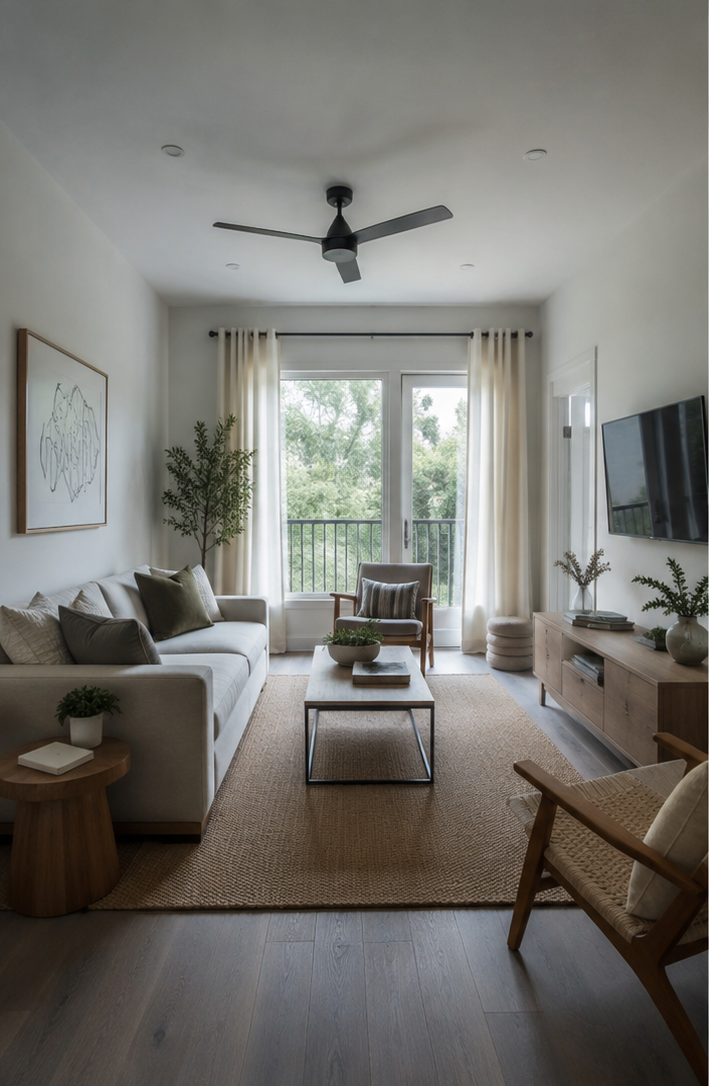
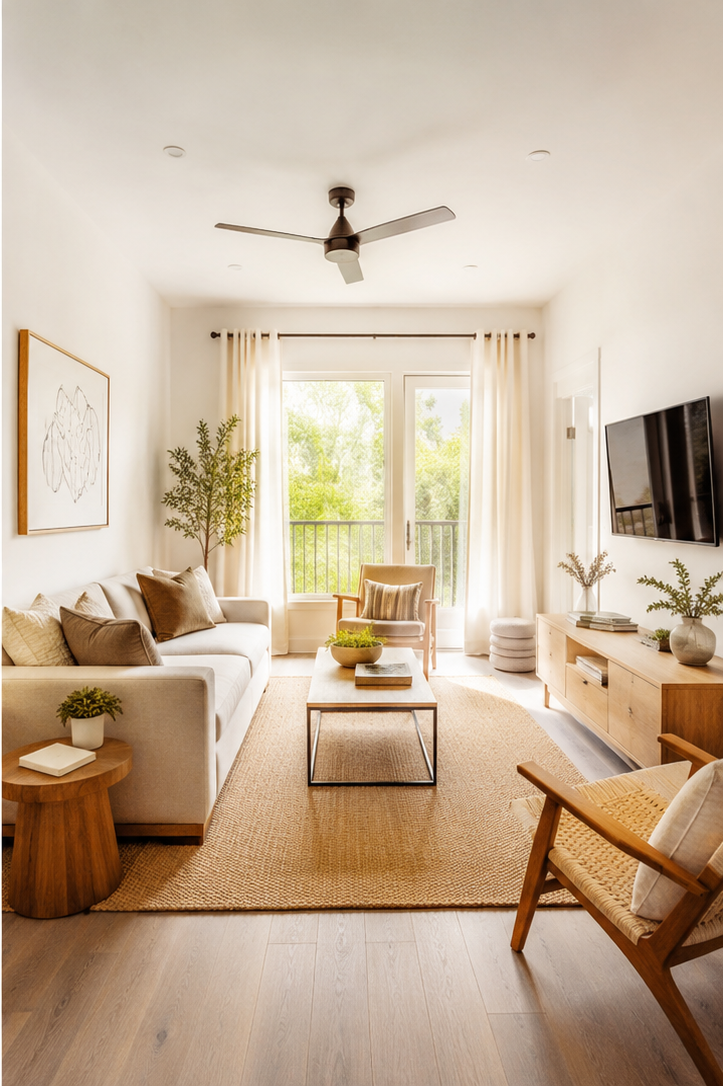
Upload a property photo, run automatic analysis, then fine-tune brightness, shadows, highlights, contrast, temperature, tint, vibrance, saturation, clarity, and sharpness. The image stays in your browser and is not saved in Welkodia's database.
No upload. No account. No watermark.
Local editor
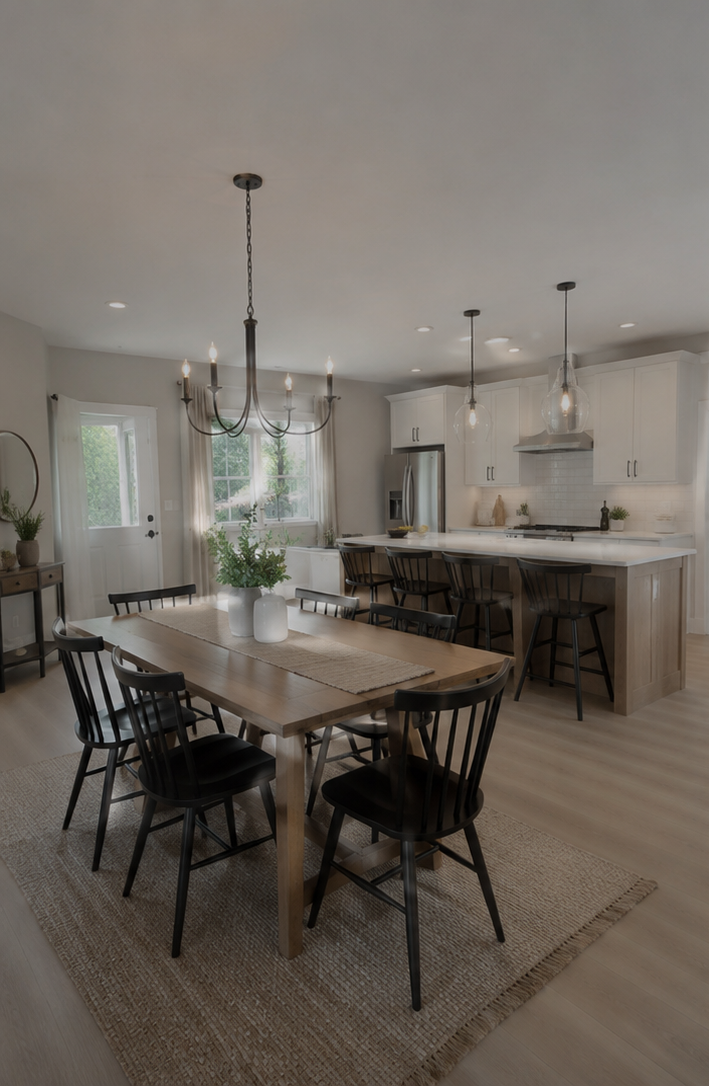
Drop a dark photo here
JPG, PNG, or WebP. The file stays in your browser.
Local editor
More visibility for your property
The official Welkodia Property Map lets hosts publish a public short-term rental profile with photos, address, amenities, rates, booking links, and iCal availability.
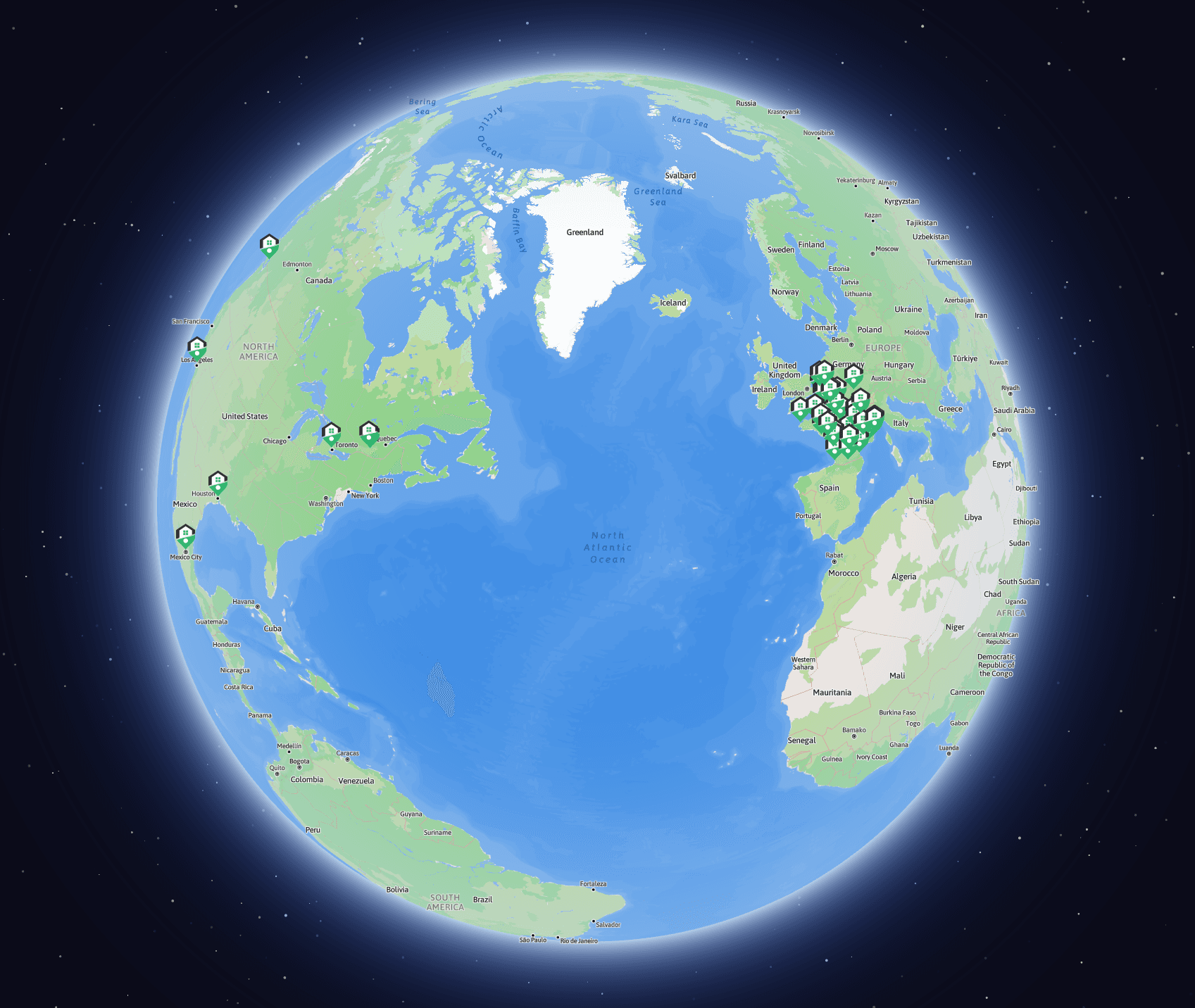
Join the global map and get more direct bookings.
Interactive comparison
Drag the slider to see how the tool opens shadows, controls highlights, adds contrast, and brings out room details.
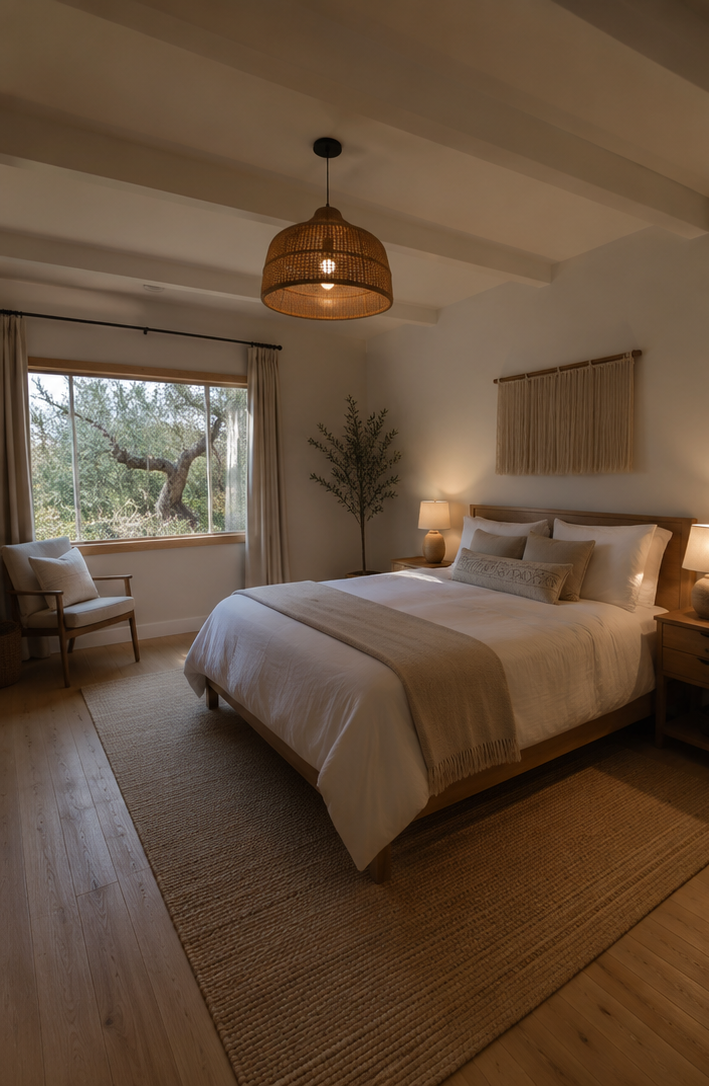
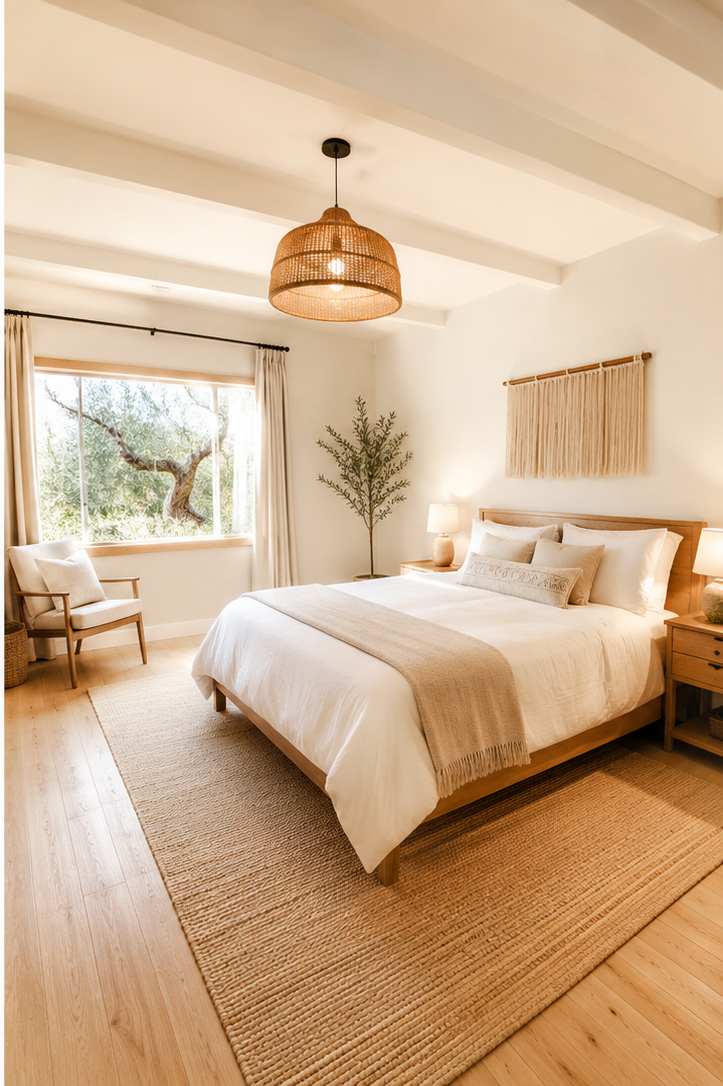
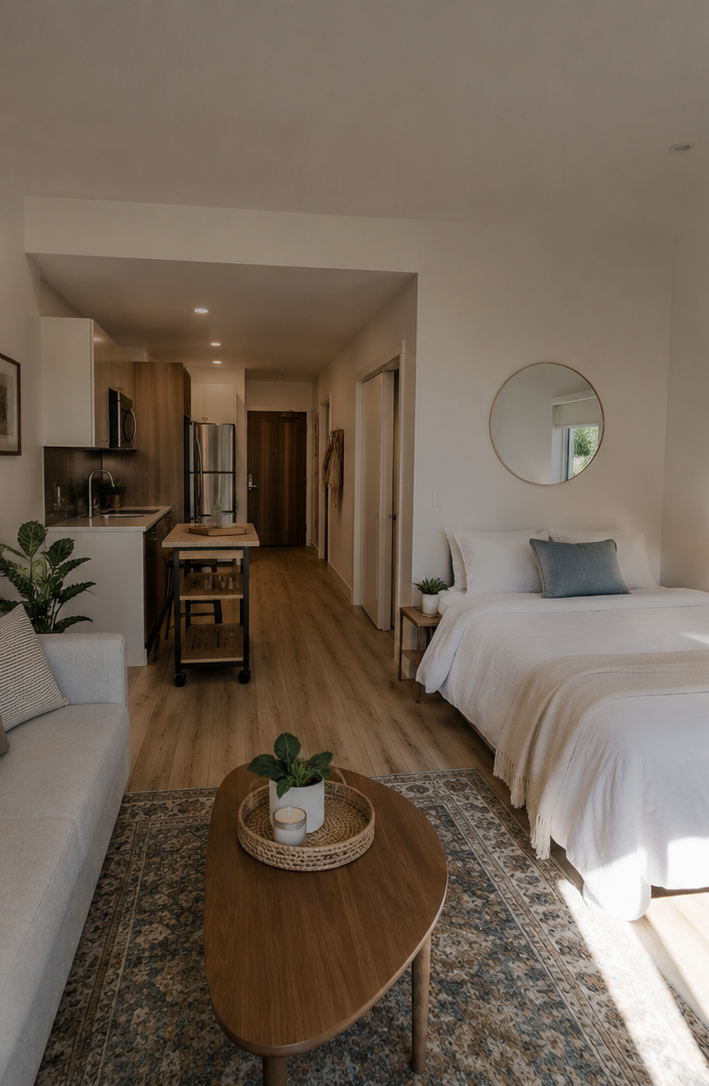
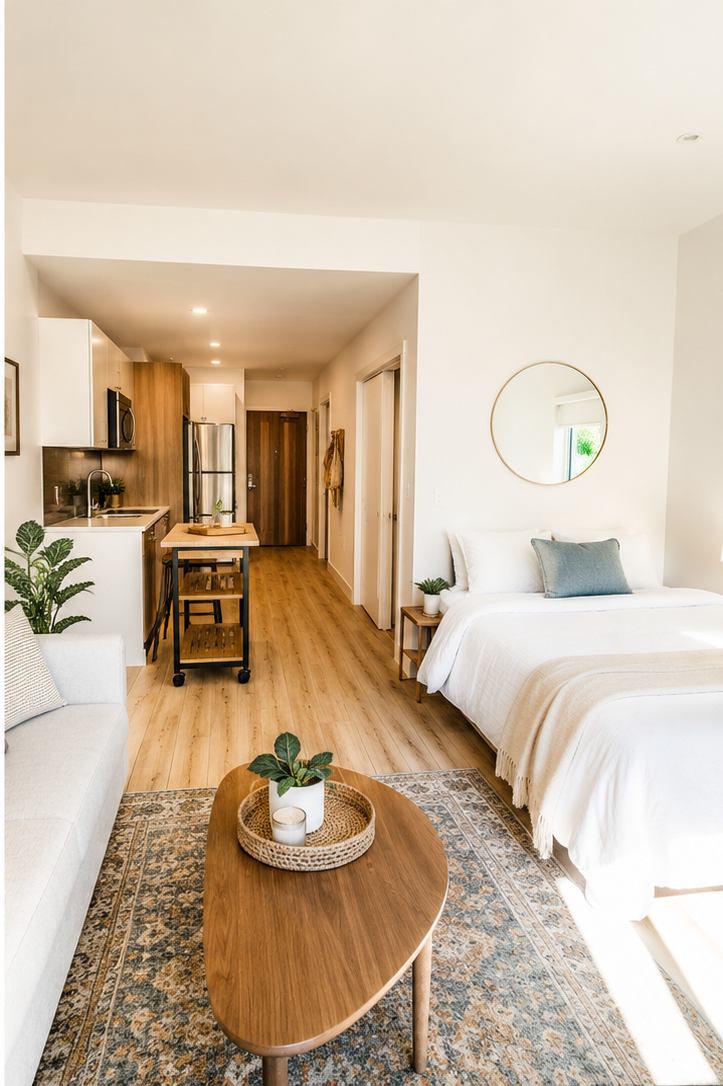
Airbnb photo
The tool uses your browser's Canvas API. It reads the image locally, estimates shadows, highlights, color and brightness, then lets you apply an automatic correction before downloading a full-resolution PNG copy.
Use a listing image from a bedroom, living room, kitchen, entrance, terrace, or bathroom.
The first pass lifts underexposed areas and opens shadows while keeping the photo natural.
Keep your original file untouched and export a brighter PNG with the same pixel dimensions for your listing or property profile.
Listing quality
A brighter image helps, but the goal is still trust. Keep the room realistic, avoid fake colors, and make sure guests can understand the space at a glance.
Open shadows enough to show corners, wardrobes, beds, and kitchen surfaces.
Pull highlights down enough to keep windows readable instead of turning everything outside pure white.
Use a small saturation lift for plants, wood, textiles, and warm details.
If a room still looks gloomy, retake the photo during daylight from a wider corner.
FAQ
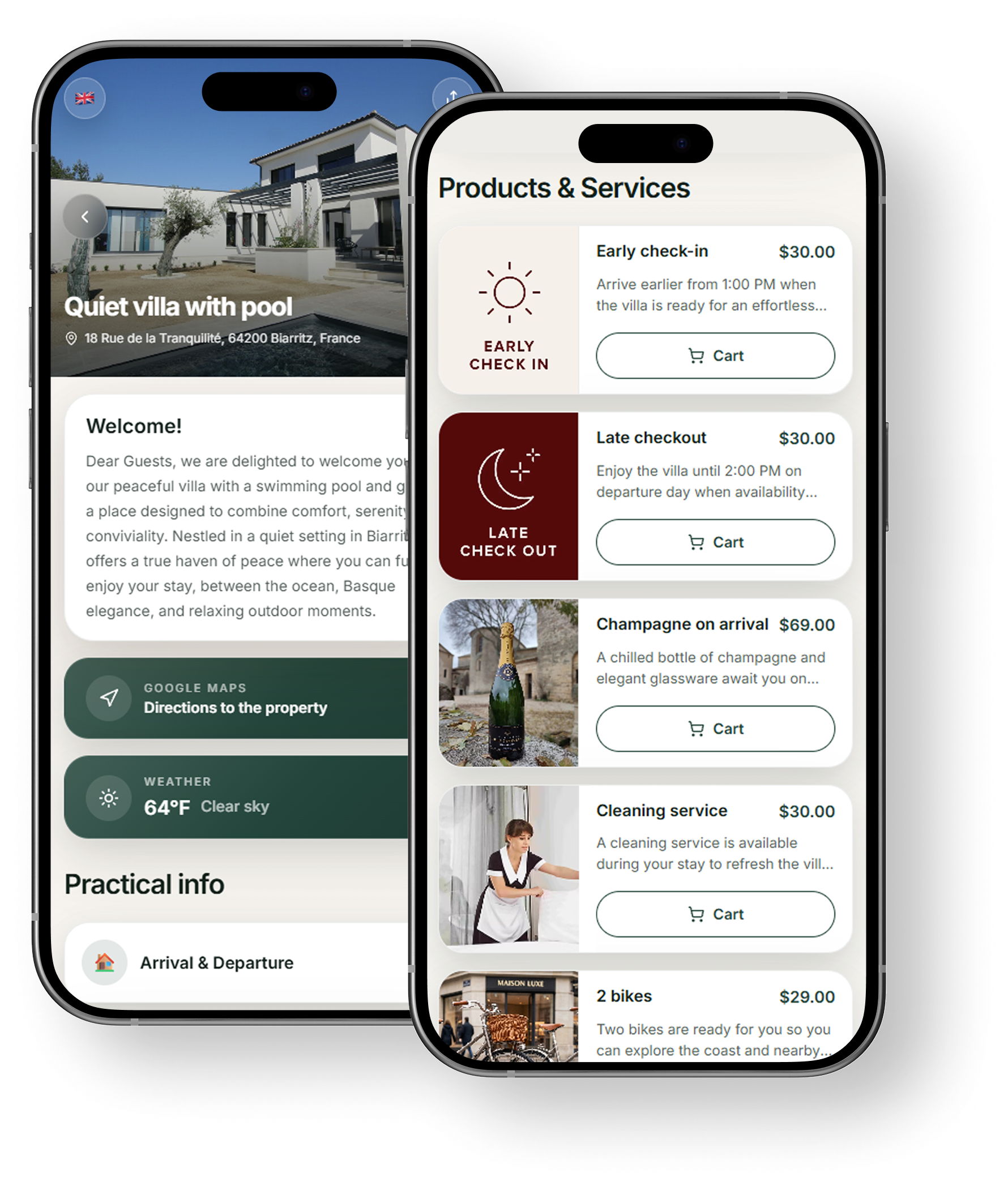
Welcome guidebook
Centralize stay information in one simple guest experience.
Sell guest extras via the guidebook.
Wake up to an order notification.
Stay details
Check-in, access, Wi-Fi, house rules and recommendations
Built-in upsell store
Extras and add-ons guests can order from the guidebook
Easy sharing
Link or QR code, with no app to download