

Create your digital guidebook with upsell store
Create my guidebook ->The WiFi password is the very first thing your guests look for once they step through the door. When they have to copy a 24-character security key filled with random letters, numbers, and symbols from the bottom of an internet router, every typo turns into an urgent host message.
Creating a free WiFi QR code allows any guest with an iPhone or Android phone to connect in under three seconds simply by opening their camera app. Here is the complete guide to generating this code, securing your rental network, and displaying it properly inside your property.
Why Typing a WiFi Password Manually Hurts the Guest Experience
After hours of flights, train rides, or highway driving with heavy luggage, no traveler wants to crawl under a TV credenza to read a faded sticker. Ambiguous characters (such as the number 0 and capital letter O, or the number 1 and lowercase l) cause immediate frustration.
Beyond guest comfort, manual typing creates real operational overhead for hosts and property managers:
- Late-night messages asking for password confirmation while you are trying to sleep.
- Guests accidentally pressing the router Reset button and wiping your custom network configuration.
- A clumsy first impression that subtly lowers your arrival review score.
The standardized WiFi QR code format (WPA/WPA2/WPA3 compatible) encodes both the network name (SSID) and the encrypted password directly into the graphic. Modern mobile operating systems scan the image and prompt the user to join the network with one tap without manual entry.
How to Generate Your WiFi QR Code in 30 Seconds
To generate your QR code without fees or third-party ads, you can use our dedicated free WiFi QR code generator.
Here are the simple steps:
- 1.Enter your exact Network Name (SSID): keep the exact capitalization, spaces, and hyphens broadcast by your router.
- 2.Select your Security Protocol: in almost all modern setups, select WPA/WPA2 or WPA3. If your network does not require a password, choose None (not recommended for short-term rentals).
- 3.Enter your WiFi Password: make sure not to copy accidental spaces before or after the passphrase.
- 4.Download the high-resolution QR code: export the file as a crisp PNG or SVG for clean printing.
Always activate a dedicated Guest Network on your router. This gives visitors full high-speed internet while completely isolating your smart locks, noise monitors, thermostats, and smart TVs from guest devices.
Best Ways to Display the QR Code Inside the Property
Generating the graphic is only half the job: you also need to present it where guests look during their first 60 seconds inside.
| Display Method | Key Advantage | Best Placement |
|---|---|---|
| Acrylic Entryway Frame (4x6 in) | Immediate visibility at check-in | Standing on the entrance console table at eye level |
| Refrigerator Magnet | Natural gathering spot in the kitchen | Eye-level on the fridge door next to the welcome note |
| Matte Table Tent Card | Accessible while lounging on the sofa | Living room coffee table with non-reflective coating |
| Digital Welcome Book | Available before check-in | Sent via automated pre-arrival message or scanned on arrival |
Avoid taping a flimsy, black-and-white piece of printer paper to the wall. It quickly curls at the edges and gives the space an unpolished, careless feel.
Why You Should Combine WiFi with a Full Digital Guidebook
Displaying a standalone WiFi QR code solves an immediate need. But what happens ten minutes later when the guest needs the trash chute location, the washer/dryer instructions, or parking regulations?
Instead of scattering loose paper notes across countertops, top-performing hosting teams centralize arrival instructions, appliance video guides, house rules, and curated local recommendations in one mobile-friendly digital guidebook.
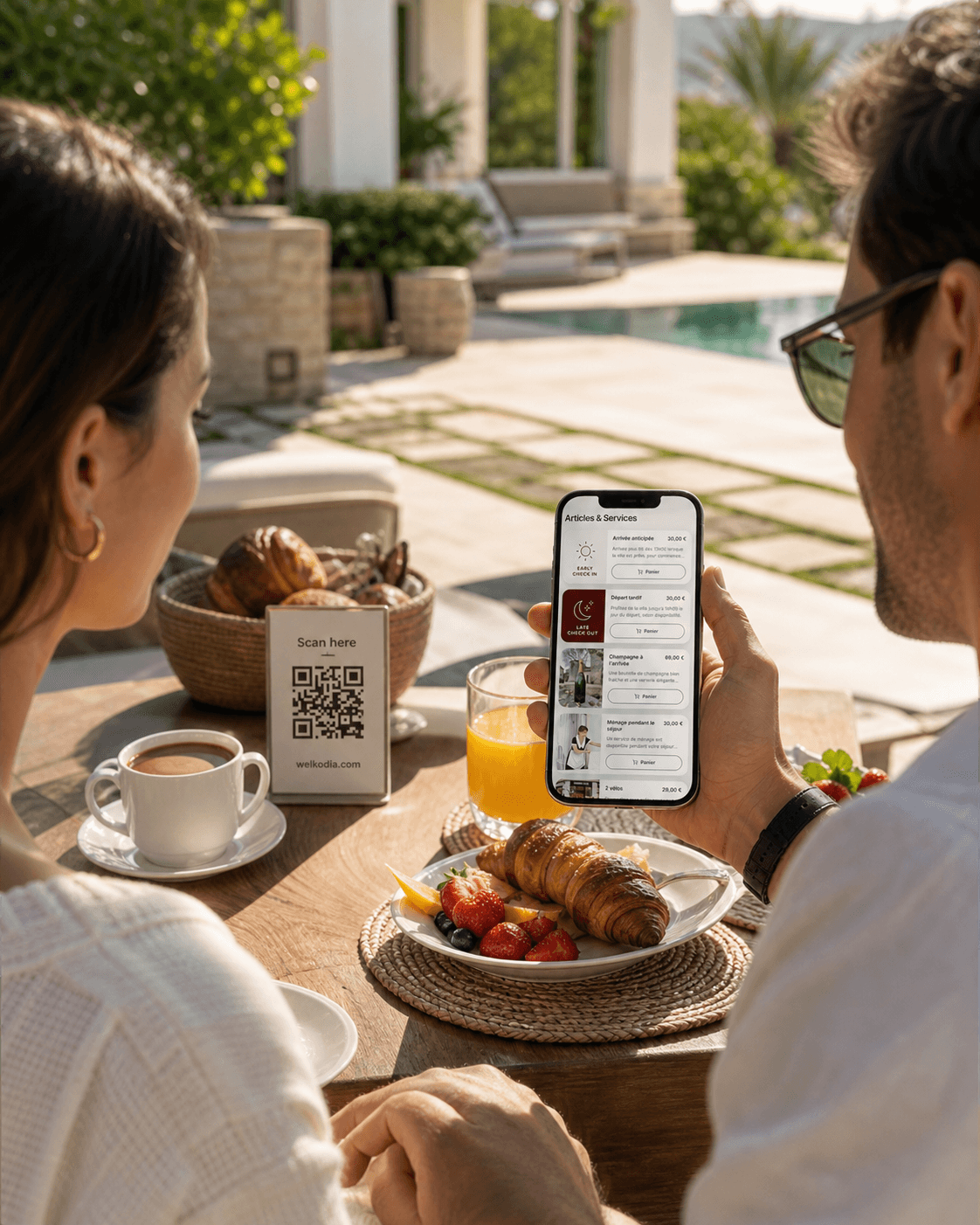
Turn every stay into extra revenue
Propose services such as early check-in, late check-out, kits, transfers, and local services inside your guidebook.
Three Costly Mistakes to Avoid
- Replacing your router without re-printing the card: if you upgrade your internet equipment, the previous QR code will immediately fail. To avoid re-printing your signage, simply configure your new router with the exact same SSID and password as the old one.
- Printing the code too small: anything smaller than 1.2 x 1.2 inches (3 x 3 cm) forces budget smartphone cameras to struggle with focal distance, especially in dim hallway lighting.
- Omitting the clear-text backup: always print the network name and password in plain text right below the QR code. Business travelers using company laptops often have camera restrictions and must type credentials manually.