

Create your digital guidebook with upsell store
Create my guidebook ->Connecting to a WiFi network by scanning a QR code takes only a few seconds, but many guests get stuck when trying to connect a second device (such as a laptop or tablet) because the password is not shown in plain text.
Whether you are a traveler arriving at a vacation rental or a host looking to explain the process clearly to your guests, here is how to scan a WiFi QR code on iPhone and Android, and how to reveal the hidden password stored on your phone.
How to Connect with an iPhone or iPad (iOS)
On recent Apple devices, no third-party scanning app is needed. The native Camera app automatically handles WiFi connection prompts.
- 1.Open the Camera app from your Lock Screen or Home Screen.
- 2.Frame the WiFi QR code in the camera viewfinder without pressing the shutter button.
- 3.Tap the yellow banner that appears below the code (labeled "Join [NetworkName] Network").
- 4.Confirm by tapping "Join" in the popup window: your iPhone connects immediately.
If no yellow notification appears, make sure the feature is enabled: open Settings, tap Camera, and verify that the "Scan QR Codes" toggle is switched on.
How to Reveal the Saved WiFi Password on iPhone
Once your iPhone is connected using the QR code, you can display the clear-text password to enter it on your laptop or share it with traveling companions:
- 1.Open Settings, then tap Wi-Fi.
- 2.Tap the blue (i) info icon next to your active connected network.
- 3.Tap the hidden dotted row labeled Password.
- 4.Authenticate using Face ID, Touch ID, or your passcode: the characters appear instantly with a direct Copy button.
How to Connect with an Android Smartphone
Most modern Android devices (Samsung Galaxy, Google Pixel, Xiaomi, Motorola) include QR scanning directly within the camera app or the quick settings panel.
- 1.Open your default Camera app and point the lens at the QR code.
- 2.Tap the connection button that appears at the bottom of the screen ("Connect to network" or WiFi icon).
- 3.On Samsung Galaxy or Google Pixel phones, you can also swipe down the notification shade and tap the "Scan QR code" quick tile.
How to View and Share the Password on Android
Android has a built-in sharing tool that turns any saved network into a new shareable QR code:
- 1.Go to Settings > Network & Internet > Internet (or Connections > Wi-Fi on Samsung).
- 2.Tap the gear icon next to your active WiFi network.
- 3.Tap the Share button (indicated by a small QR code icon).
- 4.Verify your fingerprint or PIN: the screen displays a dedicated QR code, and on most recent Android versions, the actual password is printed in plain text right below the graphic.
| Device Platform | Native Scanner Tool | Clear-Text Password Location |
|---|---|---|
| iOS (iPhone/iPad) | Apple Camera App | Settings > Wi-Fi > (i) icon > Password |
| Android (Pixel/Motorola) | Camera or Google Lens | Settings > Internet > Network > Share |
| Samsung One UI | Camera or Quick Panel | Settings > Connections > Wi-Fi > Gear > QR Code |
How to Decode a WiFi QR Code Without Connecting
If you only have an image or screenshot of the QR code and want to know the password without being in range of the router, standard WiFi QR codes use this universal text structure:
WIFI:T:WPA;S:NetworkName;P:SecretPassword123;;
- The
S:tag identifies the network SSID. - The
P:tag contains the unencrypted password. - The
T:tag specifies the security protocol (WPA, WEP, or nopass).
Scanning the static image with Google Lens or any standard barcode reader allows you to inspect the raw text string and extract the password directly.
For Hosts: How to Remove Connection Headaches for Guests
If you operate a vacation rental or short-term rental property, do not make guests search for these technical steps.
By using a free WiFi QR code generator, you can produce a polished sign that displays both the scannable code and the network credentials in clear text. You can also embed your WiFi access details directly alongside your check-in instructions inside a digital welcome guidebook.
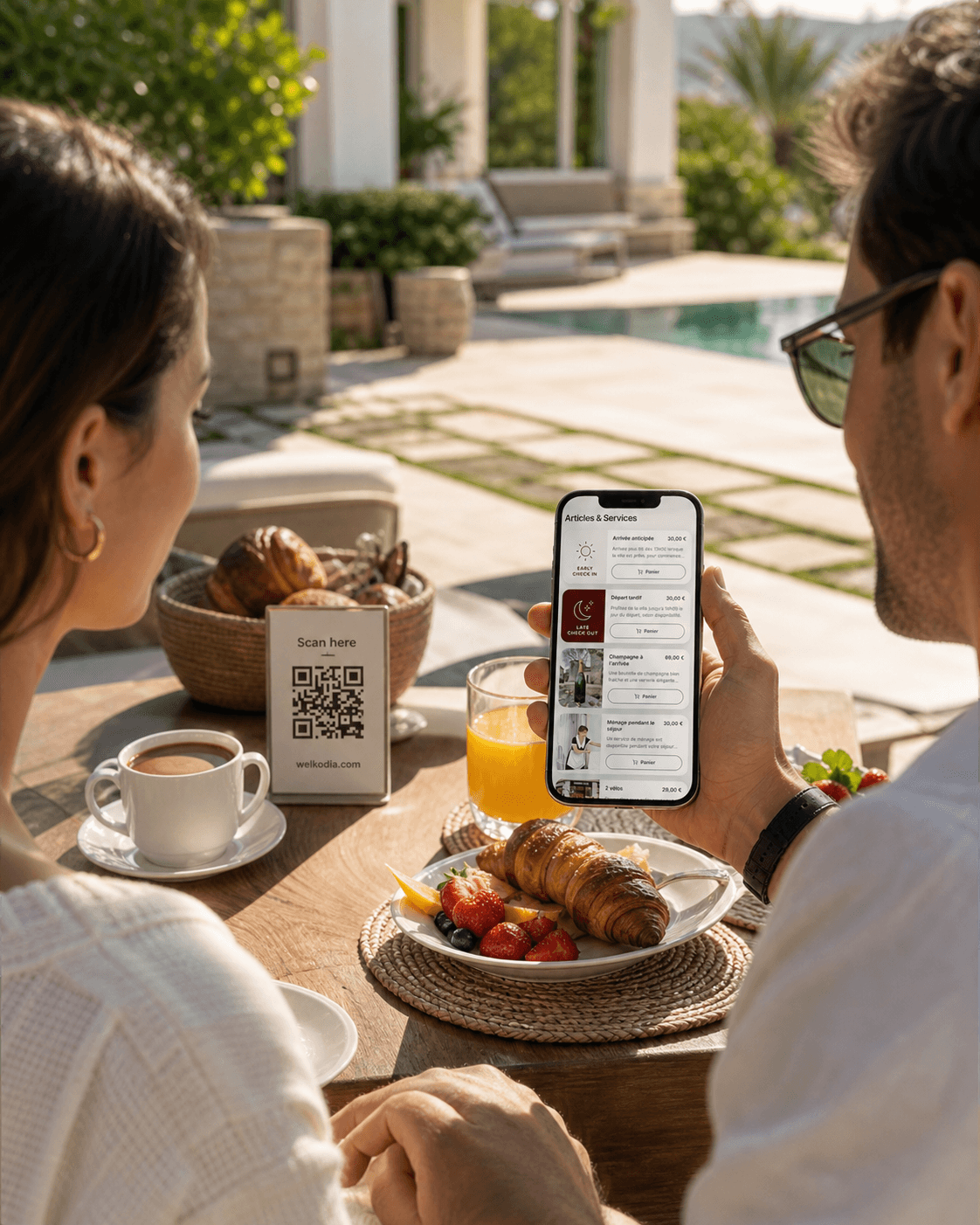
Be different from other hosts, delight your guests and unlock a new revenue stream.
Centralize arrival details, Wi-Fi, rules, recommendations, and services in one mobile-friendly guide.